Mira ヘルプ
Mira の全機能を詳しく解説します
Mira とは
Mira(ミラ)は Windows 10/11 向けの AI 音声アシスタントです。「ミラお願い」と話しかけるだけで、AI との会話、天気予報、音声ランチャーでアプリ起動、画面分析など、さまざまなことができます。
Cortana が廃止された今、Mira は Windows ユーザーのための最先端の音声アシスタントです。ローカルの AI を選べばインターネットなしでも会話でき、プライバシーを守りながら強力な AI 機能を利用できます。
動作環境
- OS: Windows 10 (64-bit) 以降 / Windows 11
- .NET: .NET 9.0 Desktop Runtime(同梱)
- RAM: 4GB 以上(ローカル AI 使用時は 8GB 以上推奨)
- マイク: 内蔵または USB マイク
- ストレージ: 約 500MB〜(Whisper モデル含む。推奨モデル large-v3-turbo: 1.6GB)
クイックスタート
- Mira をインストールし起動します。システムトレイに 「M」アイコンが表示されます。
- 初回起動時、Whisper 音声認識モデル(デフォルト small: 466MB)が自動ダウンロードされます。設定から推奨の large-v3-turbo(1.6GB)に変更可能。
- 「ミラお願い」と話しかけます。ビープ音が鳴り、画面右下にオーバーレイが表示されます。
- 質問や指示を話します。Mira が AI で応答し、音声で読み上げます。
- トレイアイコンをダブルクリックで設定画面を開けます。
ウェイクワード設定
Mira は好きな言葉で起動できます。設定画面の「ウェイクワード」タブで変更します。
- デフォルト: 「ミラお願い」「ミラ質問です」「Hey Mira please」
- 中断フレーズ: 「ミラストップして」「ミラ止めてください」「Mira stop please」で読み上げを中断(誤検出防止のため長めの語を推奨)
- カンマ区切りで複数のフレーズを登録可能
- 上の初期設定は Windows の表示言語が日本語の場合です。日本語以外の Windows では英語のフレーズが初期設定になります(ウェイクワード「OK Mira」「Hey Mira」「Mira please」、中断フレーズ「Mira stop please」「Mira stop」「Stop Mira」)
誤認識を減らすコツ
環境音やスピーカーからの音声回り込みで、意図しないウェイクや停止が起こる場合があります。フレーズを長めに設定すると誤認識が大幅に減ります。
| モーラ数 | 例 | 誤認識リスク |
|---|---|---|
| 3〜4 | ストップ、止めて | ⚠️ 高い(環境音やTTS回り込みで頻発しやすい) |
| 5〜6 | ミラお願い、ミラ止めて | ✅ 低い(実用レベル) |
| 7+ | ミラストップして、ミラ質問です | ✅ 極めて低い(推奨) |
マイク設定 NEW
設定画面の「ウェイクワード」タブで、Mira が使うマイクを選べます。ここで選んだマイクはウェイクワードの認識と音声入力の両方に使われます。
- 初期設定: 「Windows の既定のマイク」
- 選択したマイクは名前で記録されるため、USB 機器を抜き差ししても別のマイクに切り替わりません
- 変更は保存するとすぐ反映されます(再起動不要)
マイクをテスト
「マイクをテスト」ボタンを押すと 3 秒間録音し、実際の入力レベルを表示します。
| 表示 | 意味 |
|---|---|
| 平均 | 音声認識に通るかを決める値。必要値(0.0080)を下回ると、聞き取れても認識処理に進みません |
| ピーク | 瞬間的な最大音量。0.5 を超えると音が割れている可能性があり、かえって認識精度が落ちます |
マイク音量ブースト
Windows のマイク音量を最大にしても声が小さすぎる場合に、Mira 側で最大 10 倍まで増幅できます。
- まず等倍(x1.0)のまま「マイクをテスト」を押し、普段の距離・普段の声で話す
- 平均が必要値を超えていればブーストは不要です
- 下回る場合はスライダーを少しずつ上げ、平均が必要値を超え、かつピークが 0.5 を超えない値を探す
AI 機能の概要
Mira は 7 つ以上の AI プロバイダに対応しています。設定画面の「AI」タブでプロバイダとモデルを選択します。
推奨モデル(実機テスト済み)
以下のモデルは実機テストで動作を確認済みです。画面認識(Screen Vision)はクラウドのモデルで確認しました。Gemma 4 は会話用で、v2.3.1 では画面認識に使えません。
| モデル | 種別 | 画面認識 | 会話 | 特徴 |
|---|---|---|---|---|
| Claude Haiku 5.5 | クラウド | ✅ | ◎ | Claude の初期設定モデル。高速(画面の説明まで約2秒)・低コストで、説明も具体的 |
| Claude Opus 5.5 | クラウド | ✅ | ◎ | 最上位モデル。高精度だが応答はやや遅め(約5秒)で料金も高め |
| gemini-flash-latest ★ | クラウド | ✅ | ◎ | 初期設定モデル。コスパ最強・高速。会話・Vision 両方優秀。無料枠あり |
| Gemma 4 E4B-IT ★ | ローカル | — | ◎ | 会話用のローカル最推奨。高速・高精度。ツールマーカー完全対応。API キー不要・完全無料。VRAM 6GB〜 |
| Gemma 4 26B | ローカル | — | ◎ | 会話用の、より高精度なローカルモデル。ツールマーカー完全対応。VRAM 16GB〜 |
ollama pull gemma4:e4b または LM Studio: 「gemma-4-e4b-it」で検索してダウンロード。Ollama(ローカル AI)
🦙 Ollama ローカル 無料
PC 上でローカルに LLM を実行。API キー不要、完全オフライン、料金ゼロ。
- ollama.com から Ollama をインストール
- コマンドプロンプトで
ollama pull llama3.1:8bを実行してモデルをダウンロード - Mira の設定 → AI → プロバイダ: Ollama、モデル: llama3.1:8b
LM Studio(ローカル AI)
🔬 LM Studio ローカル 無料
GUI でモデルを管理。OpenAI 互換 API を提供。
- lmstudio.ai から LM Studio をインストール
- モデルをダウンロードし、ローカルサーバーを起動(デフォルト:
http://localhost:1234/v1) - Mira の設定 → AI → プロバイダ: LM Studio
Lemonade(AMD GPU)
🍋 Lemonade ローカル 無料
AMD GPU 用に最適化されたローカル AI。
Google Gemini
✨ Gemini クラウド 無料枠あり
Google の最新 AI。Google アカウントがあれば無料枠が利用可能。Mira の初期設定プロバイダ。
- Google AI Studio で API キーを取得(Google アカウントがあれば無料)
- Mira の設定 → AI → プロバイダ: Gemini、API キーを入力
| モデル | 無料枠 | 画面認識 | おすすめ用途 |
|---|---|---|---|
| gemini-3.8-flash | あり | ✅ | 最新世代の Flash。高速・高精度 |
| gemini-3.5-flash-lite | あり | ✅ | 最も安価・軽量。シンプルな会話向け |
| gemini-flash-latest ★ | あり | ✅ | 初期設定モデル。常に最新の Flash 世代を指すため、モデル名を変えずに新世代へ追従します |
-latest の付くモデルについて: 指す先は Google 側の判断で変わります。応答の品質や傾向が急に変わったと感じた場合は、gemini-3.8-flash のように世代を固定したモデルを選ぶと挙動が安定します。OpenAI
🤖 OpenAI クラウド 有料
GPT-6 世代(gpt-6.1-sol / gpt-6-luna)。Vision 対応。初期設定は gpt-6.1-sol。
Anthropic (Claude)
🎭 Anthropic クラウド 有料
Claude Haiku 5.5 / Sonnet 5.5 / Opus 5.5。高精度な画面認識対応。初期設定は高速・低コストの Haiku 5.5。
カスタムエンドポイント
OpenAI 互換 API を提供するサービスなら何でも接続可能です。Base URL とモデル名を指定してください。
音声認識(Whisper STT)
Mira は Whisper.NET を使用してローカルで音声認識を行います。音声データは外部に送信されません(ライブモードを除きます)。
設定画面の「音声認識」タブでモデルサイズを選択できます:
| モデル | サイズ | 精度 | 速度 |
|---|---|---|---|
| small | 466MB | 低 | 高速 |
| medium | 1.5GB | 中(バランス型) | 普通 |
| large-v3-turbo | 1.6GB | 高(推奨)。高速+高精度 | 高速 |
| large-v3 | 2.9GB | 最高精度 | 低速 |
音声合成(TTS)
Mira は 4 段階のフォールバックチェーンで音声合成を行います。上位エンジンが利用できない場合、自動的に次のエンジンに切り替わります。
1. AivisSpeech (localhost:10101) — 最高品質日本語
2. VOICEVOX    (localhost:50021) — 高品質日本語
3. Edge TTS    (Python edge-tts) — 多言語ニューラル音声
4. System.Speech               — 常に利用可能
TTS エンジン設定
AivisSpeech
最高品質の日本語音声合成エンジンです。aivis-project.com からダウンロードし、ポート 10101 で起動してください。
VOICEVOX
AivisSpeech が利用できない場合の代替です。voicevox.hiroshiba.jp からダウンロード。デフォルトポート 50021。
Edge TTS
Microsoft Edge のニューラル音声を使用。インターネット接続が必要です。Python edge-tts パッケージを使用: pip install edge-tts
感情 TTS
AivisSpeech または VOICEVOX 使用時、AI の応答内容に応じて 6 つの声のスタイルを自動で切り替えます(設定の「音声合成」タブの「感情スタイル自動切替」):
- ノーマル / ふつー / あまあま(嬉しい)/ おちつき / からかい / せつなめ(悲しい)
切り替わるのは、選んだ話者が同じ名前のスタイルを持っているとき(例: AivisSpeech の「まお」)だけです。持っていないときは、設定で選んだスタイルのまま話します。ノーマルは設定で選んだスタイルです。
音声コマンド一覧
Mira は音声を認識し、以下のコマンドを即座に実行します。AI に送信せずローカルで判定するため、すぐに動作します。どのコマンドにも当てはまらない発話は通常の AI 会話として処理されます(スケジュールの追加と削除は AI が処理するため、AI の設定が必要です)。
画面認識(Screen Vision)
AI が画面をキャプチャして内容を分析・説明します。Vision 対応の AI プロバイダが必要です。
| 発話例 | 英語 |
|---|---|
| 「画面を見て」「画面に何が映ってる?」 | "What's on the screen?" / "Look at the screen" |
| 「画面を説明して」「スクリーンの内容教えて」 | "Describe the screen" |
| 「スクリーンショットを撮って」「スクショ撮って」 | "Take a screenshot" / "Capture screen" |
| 「このエラー何?」「このダイアログの意味教えて」 | "What is this error?" |
| 「画面に表示されている内容を読んで」 | "Tell me what's on screen" |
検索・天気
天気を音声で聞いたり、Google の検索結果をブラウザで開いたりできます。
| カテゴリ | 発話例 | 英語 |
|---|---|---|
| Web検索 ※ (DuckDuckGo) | 「〇〇を調べて」「〇〇を検索して」 「〇〇について教えて」 | "Search for ..." / "Look up ..." "What is ...?" / "Who is ...?" |
| Web検索 ※ (用語) | 「〇〇って何?」「〇〇とは?」 | "What is ...?" / "Find ..." |
| ブラウザ検索 (Google) | 「〇〇をググって」「〇〇をグーグルで」 | "Google ..." |
| 天気 | 「今日の天気は?」「東京の天気教えて」 「明日の気温」「降水確率は?」 | "Weather" / "Forecast" "Temperature in ..." |
Webウォッチ NEW
よくチェックするWebページをキーワードで登録し、音声でその内容を取得・要約してもらえる機能です。設定画面の「Webウォッチ」タブでキーワードとURLのペアを登録してください。
| カテゴリ | 発話例 | 動作 |
|---|---|---|
| 内容取得 (AI要約) | 「最新ニュース教えて」 「天気予報を教えて」 「株価どう?」 | 登録URLのページ内容を取得し、AIが要約して読み上げ |
| ブラウザで表示 | 「最新ニュース表示して」 「天気予報開いて」 「株価見せて」 | 登録URLをブラウザで直接オープン |
https://news.yahoo.co.jp/ を登録すると、「最新ニュース教えて」でYahooニュースの主要記事をAIが要約して読み上げます。「最新ニュース表示して」ならブラウザで直接ページを開きます。キーワードは部分一致で発火するため、厳密に一致させる必要はありません。音声ランチャー(Voice Launcher)
設定画面の「音声ランチャー」タブで、キーワードと実行コマンドのペアを自由に登録できます。登録したキーワードを含む発話をすると、対応するアプリやURLが起動します。
| 発話例 | 登録キーワード | 動作 |
|---|---|---|
| 「Chrome を開いて」 | Chrome | 登録されたコマンド(例: chrome.exe)を実行 |
| 「メモ帳を起動して」 | メモ帳, Notepad | キーワードはカンマ区切りで複数登録可能 |
| 「Gmail を開いて」 | Gmail | URLを登録すればブラウザで開く |
C:\Program Files\...\app.exe)やURL(例: https://mail.google.com)を指定できます。システム操作
音量・クリップボード・日時など、システム情報の取得や操作ができます。
| カテゴリ | 発話例 | 英語 |
|---|---|---|
| 音量 | 「音量を50にして」「ボリューム上げて」 「音量いくつ?」 | "Set volume to ..." / "What's the volume?" |
| ミュート | 「ミュートして」「消音して」 「ミュート解除」 | "Mute" (解除は "Set volume to ...") |
| クリップボード (読み取り) | 「クリップボードを読んで」 「クリップボードの内容教えて」 | "Read clipboard" / "Show clipboard" |
| クリップボード (書き込み) | 「〇〇をコピーして」 「〇〇をクリップボードにコピーして」 | "Copy ..." |
| 時刻 | 「今何時?」「時刻教えて」 | "What time is it?" |
| 日付 | 「今日何曜日?」「今日の日付」 「日付を教えて」 | "What day is it?" / "What's the date?" |
タイマー・アラーム
カウントダウンタイマーやアラームを音声で設定・管理できます。
| カテゴリ | 発話例 | 英語 |
|---|---|---|
| タイマー設定 | 「3分タイマー」「タイマー5分」 「10秒計って」 | "Set a ... timer" / "Timer for ..." "Start a 30 second timer" |
| タイマー停止 | 「タイマー止めて」「タイマーキャンセル」 | —(英語では未対応) |
| タイマー確認 | 「タイマーある?」「タイマー確認」 「タイマーの残り時間」 | —(英語では未対応) |
| アラーム設定 | 「7時にアラーム」「14時30分に起こして」 「明日6時に目覚まし」 | "Set alarm for ..." / "Wake me up at ..." "Remind me at ..." |
| アラーム停止 | 「アラーム消して」「目覚まし止めて」 「アラーム解除」 | "Cancel alarm" / "Delete alarm" |
| アラーム確認 | 「アラームある?」「アラーム確認」 | "List alarms" / "Show alarms" |
保存先: %LOCALAPPDATA%\Mira\alarms.json
記憶・スケジュール
Mira は会話の中から重要な情報を自動で記憶します。「覚えて」と言えば明示的に記憶させることもできます。
| カテゴリ | 発話例 | 英語 |
|---|---|---|
| 記憶(自動) | AI が重要な事実を自動的に抽出・保存します。ピン留め📌で永続保存も可能。 | |
| 個別削除 | 「〇〇を忘れて」 | "Forget ..." / "Forget about ..." |
| 全削除 | 「全部忘れて」「記憶をクリアして」 「記憶をリセット」 ※「〇〇の記憶を消して」と言っても全削除になります | "Forget everything" / "Clear all memories" |
| スケジュール確認 | 「予定を教えて」「スケジュール確認」 「今後の予定は?」 | "What's my schedule?" / "Show schedule" |
| スケジュール追加 | 「4月10日に歯医者の予約を入れて」 「明日の15時に会議」 | "Add schedule..." / "Schedule..." |
| スケジュール削除 | 「歯医者の予定を削除して」 「4月10日のスケジュールを消して」 | "Delete schedule..." / "Remove schedule..." |
保存先: %LOCALAPPDATA%\Mira\memory.json, schedules.json
画面認識(Screen Vision)
AI が画面をキャプチャし、内容を分析・説明します。音声コマンドの詳細は 画面認識コマンド を参照。
推奨プロバイダ: gemini-flash-latest(無料枠あり)、Claude Haiku 5.5。v2.3.1 では、画面認識はクラウドの AI(Gemini・Claude・OpenAI)でのみ使えます。
Gemini Live
Google の Gemini Live API を使用したリアルタイム音声対話モードです。STT + LLM + TTS が 1 つの WebSocket に統合され、自然な会話が可能です。
- 専用ウェイクフレーズ: 「ミラライブ」で起動(通常の「ミラお願い」とは分離)
- 停止フレーズで即終了(トレイの「一時停止」でも終了します)
- 設定画面の「Live」タブで有効化
- 使用モデル: gemini-3.8-live(設定の「Live」タブで変更可)
- 言語(聞き取り・返事): 日本語・英語・自動判定から選べます。初期設定は「Windows の言語に合わせる」(日本語・英語以外の Windows では自動判定)。言語を決めると返事はその言語になり、短い発話を外国語と取り違えることが減ります
- Mira が話している間とツールを使っている間は、マイクの音を送りません(スピーカーの声を拾って暴走しないため)。話の途中で声で割り込むことはできませんが、停止フレーズで終了できます
- 画面キャプチャ(v2.3.1 から、新しくインストールした場合は初期設定で無効): 「Live」タブで有効にすると、頼まれたときに AI が画面を確認します。スクリーンショットは Google に送信されます。AI の判断によるため、頼んでいないのに確認することもあります
おぼえがき(Custom Notes)
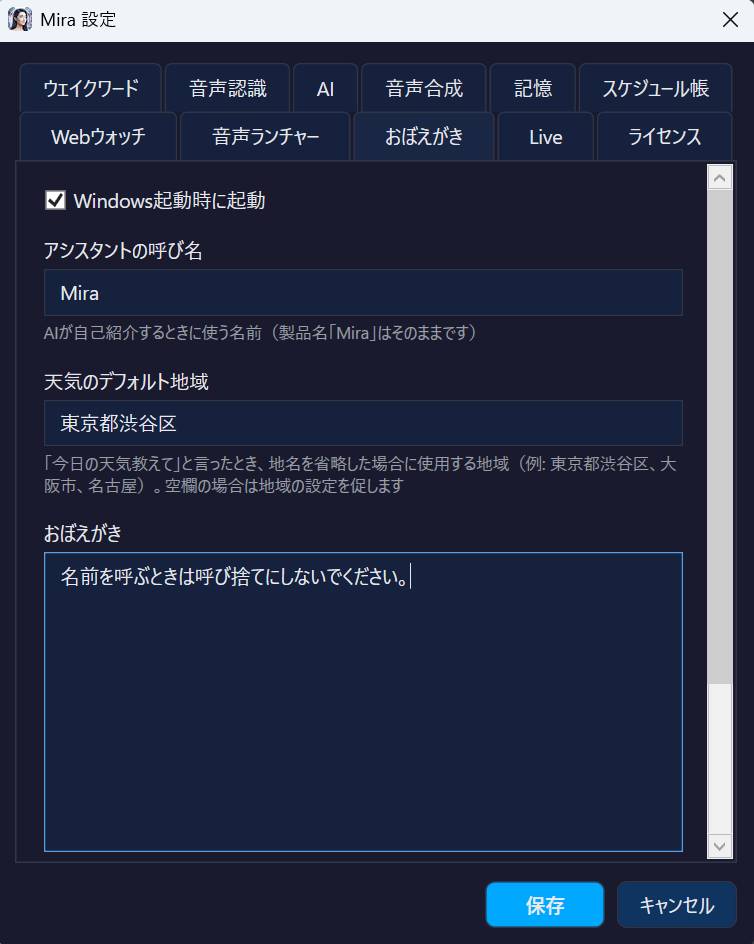
設定画面で Mira に追加の指示を書けます。例: 「天気を聞かれたら Yahoo 天気で検索して」「タメ口はだめ」
Webウォッチ設定 NEW
設定画面の「Webウォッチ」タブで、キーワードとURLのペアを登録します。
- 設定画面を開く(タスクトレイのミラアイコンをダブルクリック → 「設定」ボタン)
- 「Webウォッチ」タブを選択
- キーワード欄に発話で使う単語(例: 「最新ニュース」)を入力
- URL欄に取得したいページのURLを入力(例:
https://news.yahoo.co.jp/) - 「追加」ボタンをクリック
- 「保存」ボタンで設定を保存(キャンセルで破棄)
音声ランチャー設定
設定画面の「音声ランチャー」タブで、キーワードと実行コマンドのペアを登録します。登録したキーワードを含む音声コマンドで、アプリやWebサイトを起動できます。
- 設定画面を開く(タスクトレイのミラアイコンをダブルクリック → 「設定」ボタン)
- 「音声ランチャー」タブを選択
- キーワード欄に発話で使う単語を入力(例: 「Chrome, クローム」)。カンマ区切りで複数登録可能
- コマンド欄に実行ファイルのパスまたはURLを入力(例:
chrome.exeまたはhttps://mail.google.com) - 「追加」ボタンをクリック
- 「保存」ボタンで設定を保存
.exe や .bat のパスを指定するとアプリが起動し、https:// で始まるURLを指定するとブラウザで開きます。PATHが通っている実行ファイル(例: notepad.exe、calc.exe)はファイル名だけでOKです。起動設定
設定画面の「おぼえがき」タブにある「Windows起動時に起動」をオンにすると、Windows にサインインしたときに Mira が自動で起動します(初期設定はオン。Microsoft Store 版では自動で起動しないことがあり、確認中です)。Mira は起動するとウィンドウを開かず、システムトレイに常駐します(初回だけセットアップ画面が表示されます)。
ライセンスについて
Mira は完全無料のフリーソフトです。ライセンスキーや試用期間はありません。すべての機能を制限なくご利用いただけます。
FAQ
Q: 音声認識の精度が低い・誤認識が多い
設定の「音声認識」タブで、より高精度なモデルに変更してみてください。
- small(デフォルト・466MB): 高速だが低精度
- large-v3-turbo(1.6GB・推奨): 高速+高精度。最もバランスが良い
- large-v3(2.9GB): 最高精度だが低速。PCスペックに余裕がある場合に
Q: 呼んでいないのにMiraが反応する
ウェイクワードが短いと、環境音やテレビの音声で誤って起動することがあります。以下の対策を試してください:
- ウェイクワードを長めにする: 「ミラ」→「ミラお願い」「ミラ質問です」など、6モーラ以上推奨
- 中断フレーズも長めに: 「ストップ」→「ミラストップして」にすると誤停止も防げます
- マイクとスピーカーが近い場合、Mira 自身の音声が回り込む可能性があります。ヘッドセットの使用も効果的です
Q: Webウォッチがうまく動かない
以下を確認してください:
- キーワードを変えてみる: 音声認識で正しく認識される単語に変更。例:「ニュース」が「入っす」と認識される場合、「最新ニュース」に変更
- 複数キーワードを登録: カンマ区切りで「ニュース, 最新ニュース, にゅーす」のように複数登録するとマッチ率が上がります
- URLが正しいか確認: ブラウザで直接URLを開いて、内容が表示されるか確認してください
- AIプロバイダが設定されているか確認: Webウォッチの要約機能にはAIプロバイダが必要です
Q: 音声ランチャーでアプリが起動しない
以下を確認してください:
- キーワードが正しく認識されているか: ログファイル(
%LOCALAPPDATA%\Mira\diag.log)の「STT result」の行で、実際に認識されたテキストを確認 - コマンドのパスが正しいか: フルパスで指定するか、PATHが通っているコマンドを使用
- 「開いて」「起動して」「立ち上げて」などの起動系の動詞と一緒にキーワードを発話してください
Q: 画面認識(Vision)が使えない
Vision対応のクラウドの AI が必要です(v2.3.1 では、ローカルの AI では画面認識を使えません)。以下のいずれかを設定してください:
- gemini-flash-latest(推奨・無料枠あり)
- Claude Haiku 5.5 / Sonnet 5.5 / Opus 5.5(高精度)
Q: 天気情報を聞くと地域の設定を促される
設定画面の「おぼえがき」タブにある「天気のデフォルト地域」欄にお住まいの地域名を入力してください(例: 「東京」「大阪」「横浜」)。「今日の天気教えて」と言ったとき、この地域の天気が返ります。空欄の場合、地域の設定を促します。
Q: AIの応答が遅い
以下を試してみてください:
- クラウドAPIを使う: Gemini Flash は無料枠があり高速(1日あたりの上限はモデルにより異なります)
- ローカルの場合: より小さいモデルに変更(例: gemma3:4b)、またはGPUアクセラレーションを有効に
- Lemonade(AMD NPU): AMD Ryzen AI搭載PCならLemonade経由で高速推論が可能
Q: インターネットなしで使えますか?
はい。Ollama(AI)+ Whisper(STT)+ AivisSpeech/VOICEVOX(TTS)の組み合わせで、会話は PC の中で完結します。音声認識のモデルは最初に一度だけダウンロードが必要です。天気・Web 検索・画面認識・ライブモードはインターネットを使います。Mira の起動時(または設定の保存時)にローカルの AI が起動していないと、クラウドの API キー(環境変数に設定したキーを含む)があればクラウドの AI に切り替わります。
Q: Mira はどんなデータを送信しますか?
クラウドの AI を使うときは、音声認識後のテキストと直近の会話、AI が答えるために使う情報(記憶・予定・検索結果など)をその AI に送ります。ローカルの AI を使うときは、会話の内容を外部に送りません。ただし、Mira の起動時(または設定の保存時)にローカルの AI が動いていないと、クラウドの API キー(環境変数に設定したキーを含む)があればクラウドの AI に切り替わり、Mira を再起動するか設定を保存し直すまで会話がクラウドに送られます(切り替わったことは画面に表示されません)。また、Web 検索・天気・Edge TTS・画面認識・ライブモードでは外部のサービスに送ります。一覧はトップページのデータの流れ、詳細はプライバシーポリシーをご覧ください。
Q: VOICEVOX / AivisSpeech は別途インストールが必要ですか?
はい。これらは外部ソフトウェアです。インストールして起動しておく必要があります。インストールしない場合は、Edge TTS(Python の edge-tts が必要)か Windows 標準の音声(System.Speech)で読み上げます。
Q: 無料で使えるAIプロバイダはありますか?
はい。以下が無料で利用可能です:
- Gemini Flash: 無料枠あり。1日あたりの上限はモデルにより異なり、変わることがあります(APIキー取得は初回セットアップウィザードで案内)
- Ollama: 完全無料のローカルAI。PCにインストールするだけ
- LM Studio: Ollamaと同様のローカルAI。GUIで操作しやすい
Q: 記憶機能をオフにしたい
「全部忘れて」「記憶をクリアして」と言うと、保存された記憶をすべて削除できます。現時点では記憶機能自体をオフにする設定はありませんが、不要な記憶は個別に「〇〇を忘れて」で削除できます。
トラブルシューティング
ウェイクワードが反応しない
まず正しいマイクが選ばれているかを確認してください。声にまったく反応しない場合、最も多い原因はこれです。
- 設定 → 「ウェイクワード」タブを開く
- 「マイク」で実際に使っているマイクを選ぶ
- 「マイクをテスト」を押し、普段の距離で話して平均が必要値を超えるか確認する
- 超えない場合は「マイク音量ブースト」を上げるか、マイクに近づく(詳しくはマイク設定)
それでも解決しない場合:
- マイクがミュートになっていないか確認
- Windows のマイクアクセス許可を確認(設定 → プライバシー → マイク)
- Mira が一時停止中(グレーのトレイアイコン)でないか確認。動作中はオレンジ、聞き取り中は青になります
TTS の音声が出ない
- スピーカーがミュートになっていないか確認
- AivisSpeech / VOICEVOX が起動しているか確認
- 設定の「音声合成」タブで TTS エンジンを確認
AI が応答しない
- 設定で AI プロバイダが正しく設定されているか確認
- Ollama の場合:
ollama listでモデルがインストールされているか確認 - クラウドプロバイダの場合: API キーが正しいか確認
サポート
ご質問やバグ報告は support@mojosoft.biz までお気軽にお問い合わせください。