Snap Video Translator — for WindowsGive your videos subtitles and a voice in another language.

Transcription, AI translation, burned-in subtitles and AI dubbing in one app. Add a video, pick the languages, and press Start. Transcription runs on your own PC.

Translate a Video with Subtitles and AI Dubbing

Press ▶ to play, then switch to “Translated” above. The same scene plays in Japanese, with subtitles and a dubbed voice. Turn the sound on.

This demo is our 30-second English promo video, translated into Japanese with Snap Video Translator.

Try it on your own video.

Free for videos up to 5 minutes, with no time limit. No account needed.

One-time purchase, no subscription Transcription on your PC Code-signed installer Translation and dubbing in 7 languages

The download installer is code-signed (Mojosoft Co., Ltd.). Right after a release, Windows SmartScreen may still show a prompt on first run — click "More info" → "Run anyway" to launch.

Three steps, that's all.

FirstAdd your video

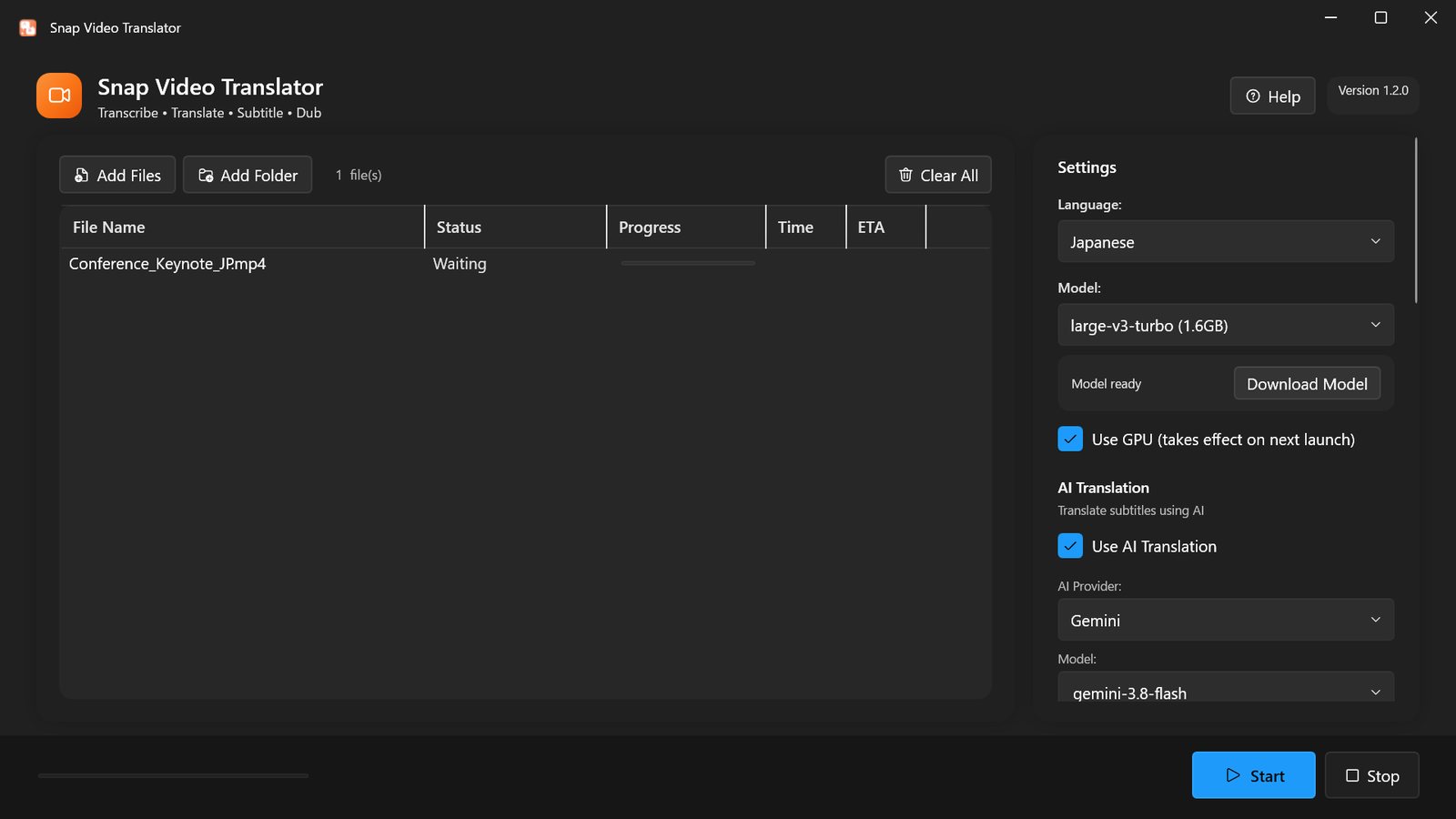
Drag and drop your files. Add several videos, or a whole folder, at once. Common formats such as MP4, MKV and MOV open as they are.

A video file added to the app

NextPick the languages

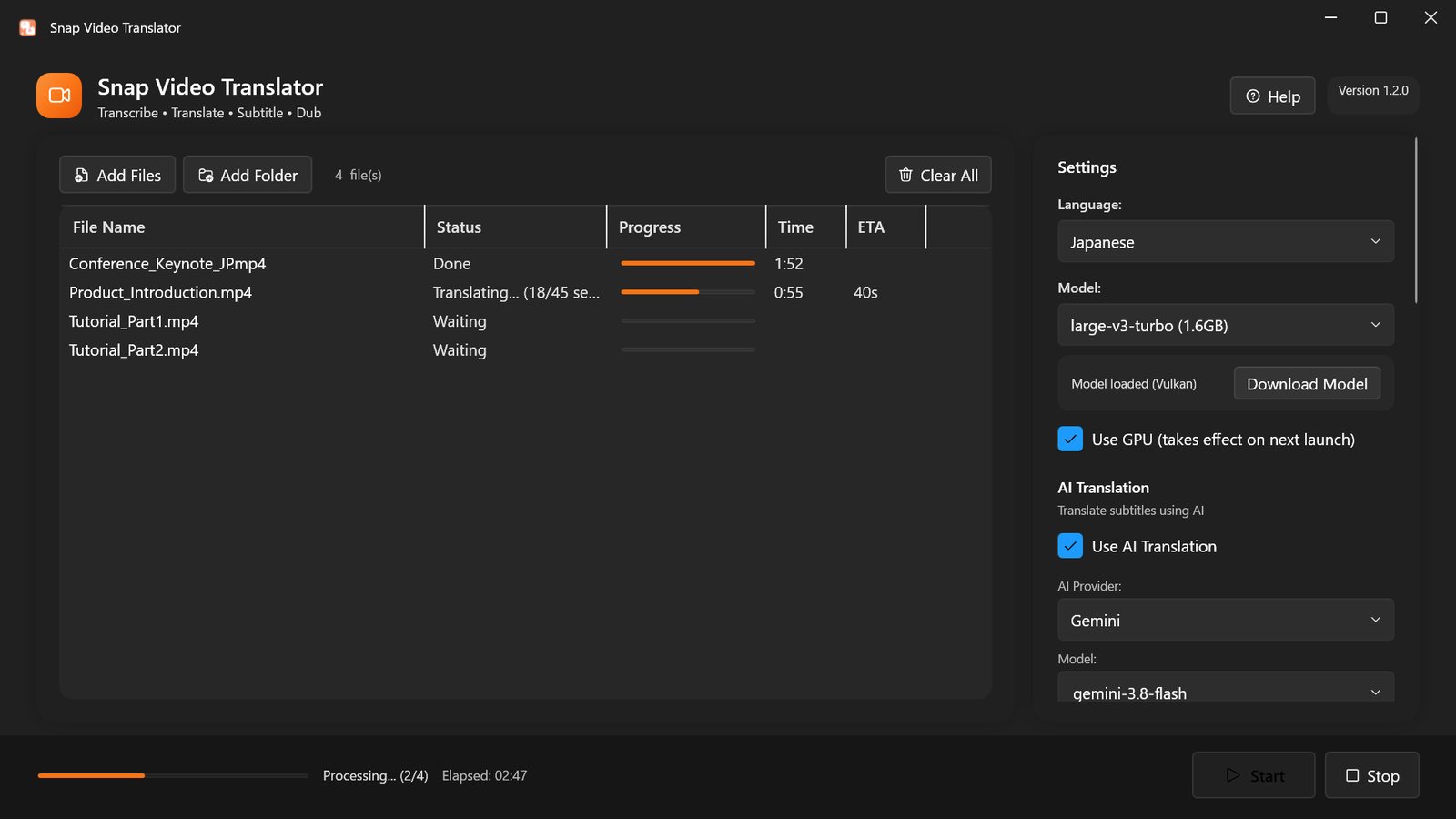
Choose the spoken language and the language you want, then press Start. Translation and dubbing cover Japanese, English, Chinese, Korean, French, German and Spanish.

Several videos being converted

ThenCollect the results

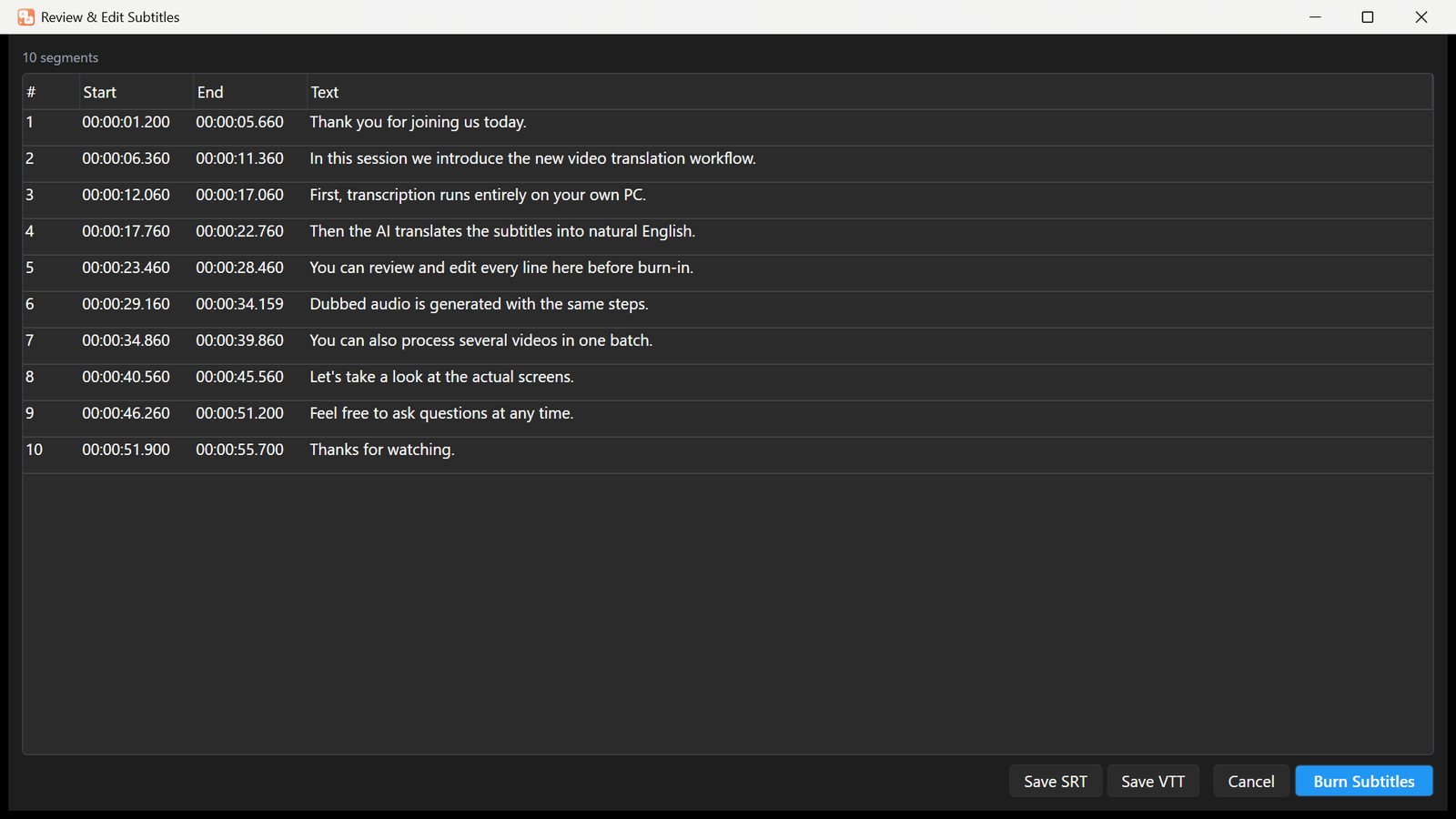
You get subtitle files (SRT, VTT), a video with burned-in subtitles, and a dubbed video. Turn on Review mode to fix the translation line by line before burn-in.

The subtitle review and edit window

Everything you need to localize a video.

From transcription to dubbing — one app covers it all.

Transcription

Runs OpenAI Whisper on your own PC. Builds the subtitle text without sending audio to the cloud.

  • Choose small / medium / large-v3-turbo / large-v3
  • Export subtitles as SRT and VTT

AI translation

Translate with AI services such as Gemini, OpenAI and Claude, or a local LLM (LM Studio, Ollama, etc.).

  • Choose from 7 target languages
  • Review and edit subtitles before burn-in

Burned-in subtitles

Choose the font size, color (white or yellow) and position (top, center or bottom), then burn subtitles directly into the video.

  • Choose size, color and position
  • Batch-process multiple videos

AI dubbing

Turns the translation into speech and makes a dubbed video. Mix it with the original audio, or replace the original.

  • JA / EN / ZH / KO / FR / DE / ES
  • Male or female voice

Use Cases

Add subtitles or dubbing to the video and audio files you already have.

Talks and training videos

Add subtitles in one of the 7 supported languages to recorded talks, webinars and in-house training, then share them with your team.

Your own videos, for a global audience

Add English, Japanese, Spanish, Chinese and other subtitles or dubbing to your YouTube videos or product videos.

Recordings to text

Transcribe interviews and lectures (MP3, WAV and more) into timed subtitle files (SRT, VTT).

Videos that must stay in-house

Transcription runs on your PC. Choose a local LLM and translation stays in-house too (dubbing uses an online voice service).

Where Your Data Goes

What stays on your PC, and what is sent over the internet.

Stays on your PC

  • Extracting audio from the video
  • Transcription (OpenAI Whisper)
  • Creating subtitle files, burning in subtitles and writing the video
  • Translation with a local LLM (LM Studio, Ollama, etc.) running in your own environment

Sent over the internet

  • Translating with a cloud AI: only the subtitle text is sent to the AI service you choose (Google Gemini, OpenAI or Anthropic Claude). Audio and video are not sent
  • Dubbing: the subtitle text to be spoken (the translation, when AI translation is on) is sent to Microsoft's online text-to-speech service (Edge TTS)
  • Downloading a transcription model the first time (from Hugging Face)

Your videos, audio and text are never sent to the developer (Mojosoft). No account signup and no usage tracking. See the Privacy Policy for details.

Supported Formats

Open common video and audio formats as they are.

Video inputMP4MKVAVIMOVWebMWMVFLV
Add several files, or a whole folder, at once
Audio inputMP3WAVM4AOGGFLACWMA
Used for transcription and subtitle files (dubbing needs a video)
Output filesSubtitle files: SRT and VTT
Video with burned-in subtitles: same format as the source (MP4 in, MP4 out)
Dubbed video: same format as the source
LanguagesTranscription (spoken language): Japanese, English, Chinese, Korean, or auto-detect
Translation and dubbing: Japanese, English, Chinese, Korean, French, German, Spanish
App interface: English or Japanese (follows your Windows language)
RequirementsWindows (64-bit)

Pricing — One-Time Purchase, No Subscription

Get it easily from Microsoft Store, or try the download edition before buying. Same price either way — ¥2,950, one-time — with identical features.

Try before you buy

Download Edition

¥2,950one-time

  • Free trial (videos up to 5 min, no time limit)
  • Pay via PayPal or bank transfer
  • One-time purchase, permanent license
  • Manual updates (notified by email)
Download Free Trial Buy the download edition (license key) →
Easiest

Microsoft Store

¥2,950one-time

  • One-click purchase and install
  • Automatic updates
  • No license key required
  • Buy with your Microsoft account
Buy on Microsoft Store

You choose the translation AI. A local LLM costs nothing extra. With a cloud AI (Gemini, OpenAI or Claude), that provider bills you for API usage through your own API key. Transcription and dubbing cost nothing beyond the app.

FAQ

Can I add English or other subtitles to my own YouTube videos?

Yes. Download your video from YouTube Studio, open it in the app, and you get subtitle files (SRT, VTT). Add the file in YouTube Studio to publish your video with subtitles.

Does it work on a PC with no internet connection?

Yes. Transcription runs on your PC, and with a local LLM (LM Studio, Ollama, etc.) translation does too, so you can make subtitles offline. You only need the internet to download the models the first time (dubbing uses an online text-to-speech service).

Can I use it for confidential videos?

Yes. Audio and video never leave your PC. With a local LLM, the subtitle text stays in-house too. Nothing is sent to the developer.

Can it handle long videos and many files at once?

Yes. The Microsoft Store edition and the purchased download edition have no length limit. Add several files or a whole folder, and they are processed one after another.

Can I fix the translation before finishing?

Yes. Turn on Review mode to edit the subtitles line by line before burn-in. Review mode opens when the file list contains a single video.

Can I try it before buying?

Yes. The download edition is free for videos up to 5 minutes, with no time limit and no account.

Is it a one-time purchase?

Yes. Pay ¥2,950 once and keep using it. You choose the translation AI: a local LLM costs nothing extra, and a cloud AI (Gemini, OpenAI or Claude) is billed by that provider.

Can I use the subtitles in other software?

Yes. SRT and VTT are standard subtitle formats that YouTube and most video editors can import.
For more questions, see the user guide.

Changelog

We keep improving it. The Store and download editions share the same latest build.

v1.2.1

  • Fixed dubbed videos having no voice (adapted to a change in the online voice service)
  • The app now tells you when the dubbed audio could not be generated
  • Updated the app's runtime to the latest long-term support version (.NET 10) for improved security

v1.2.0

  • Updated the AI translation models to the latest generation (Gemini 3.8 Flash, GPT-6.1, Claude Sonnet 5.5 / Opus 5.5, and more). If an older model was selected, the app switches to the recommended one automatically
  • Your API key is now stored encrypted with Windows data protection (keys saved by earlier versions are encrypted automatically)
  • Fixed the selected AI model resetting to the default on the next launch
  • If the AI returns no translation for some lines, only those lines keep the original text and the app shows how many (subtitles no longer shift out of place)
  • Fixed translation failures with some Claude models (Sonnet 5 / Opus 5)
  • Fixed the blank subtitle review/edit window in Review mode
  • Renamed the AI option to "Local LLM (LM Studio, Ollama, etc.)" and stopped sending your cloud API key to a local LLM

v1.1.2

  • Updated the AI translation models to the latest generation (Gemini 3.7 Flash, GPT-5.6, Claude Sonnet 5 / Opus 5, and more)
  • Fixed translation failures with the latest OpenAI models
  • Added protection against crashes while loading the speech model on some systems (it falls back to CPU mode automatically; you can also switch manually in settings)
  • The model status now shows which runtime is in use (GPU / CPU)

See the full changelog →

Support

Bug reports and feature requests
Report via GitHub Issues.

Contact
Email: support@mojosoft.biz

Privacy Policy

Now try it on your own video.

Free for videos up to 5 minutes. No account needed.

Try free Store